2026-01-06
·Setting Up Label Studio with Amazon S3 for Video Annotation
·Data Annotation
·4 min read
Details
Video Footage of: Sean-Connor Atafo
Advisor: David Clement Johnson
Copyright: 2025 simeng.dev. All Rights Reserved.
1. Introduction
This article describes the video annotation workflow for creating a dataset primarily intended for training a ML model for push-off movement detection. Three key events are labelled using video annotation with Label Studio: push-off movements, ground contact during bounding exercises, and the final landing in the sand pit. The annotation methodology is presented.
First, the source storage properties and permissions are discussed. Subsequently, the process of connecting source and target storage to Label Studio is explained. A template for the labelling interface is then selected, with the reasoning for this choice provided. The concluding remarks address the next steps. The procedure for drawing bounding boxes on selected frames and saving the final annotations to storage is then described in the next article.
2. Upload to Source Storage from Go Pro
As of 4th January 2026, two winter training sessions and one national training camp have been recorded. The latter, in particular, has provided very high-quality data, contributing to a total of 191 videos for model training.
The GoPro was operated remotely via Quik Mobile App. Settings were chosen such that it automatically synchronised recordings to GoPro Cloud Media Library storage and subsequently purged the videos from the SDCard once the upload was complete, enabling continuous recording without manual storage management.
The videos were downloaded and uploaded manually onto an AWS S3 bucket, where a source folder was created to store the .mp4 files. Currently, there is no method to connect Label Studio to GoPro cloud storage, so the recording must be migrated to any of the providers below, unless the annotation is done locally, which is discouraged given the share ammount of data collected.
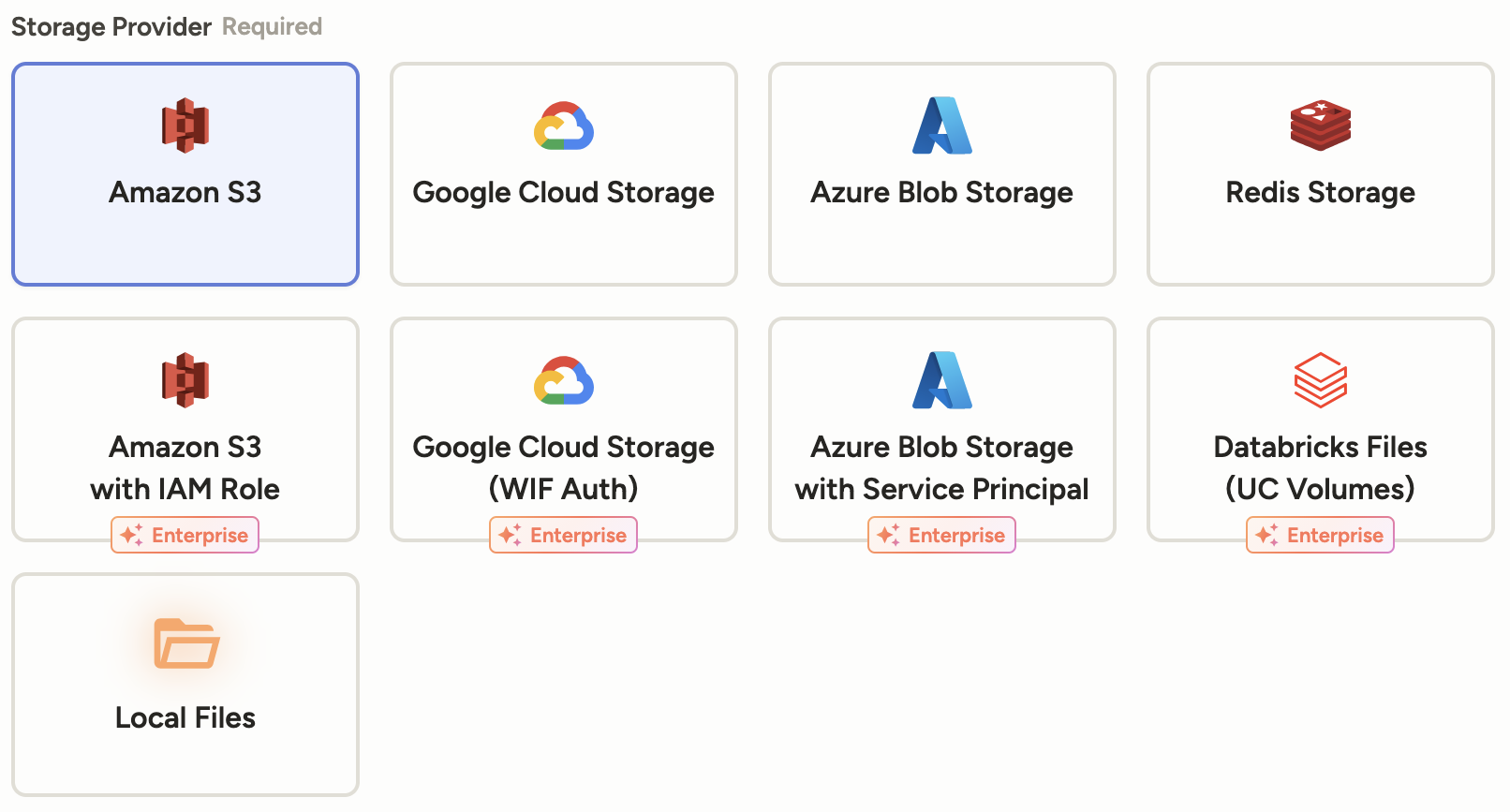
Upon upload to S3, the CORS configuration was adjusted to the following
[
    {
        "AllowedHeaders": [
            "*"
        ],
        "AllowedMethods": [
            "GET",
            "HEAD"
        ],
        "AllowedOrigins": [
            "*"
        ],
        "ExposeHeaders": [],
        "MaxAgeSeconds": 3000
    }
]
And the access was set to Block all public access to ensure the source and target folder are private and only accessible with IAM credentials.
3. Connect Source Storage to Label Studio
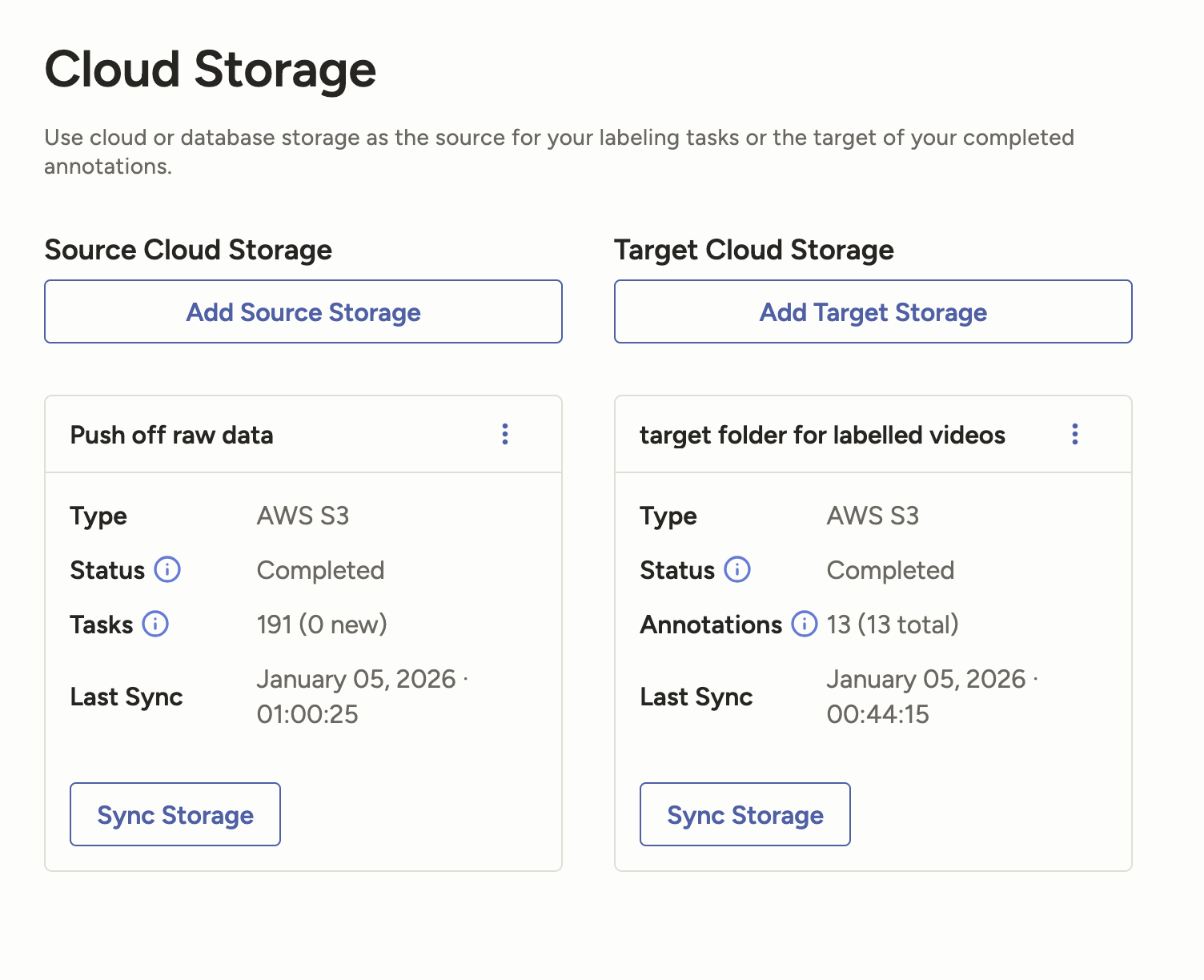
Connecting Label Studio to the source folder is done by selecting the Cloud Storage option in Settings, then Add Source Storage. The Bucket Name and Region Name are needed, while the S3 endpoint field is left blank to use the default value. The Secret Key and Access Key from the IAM credentials generated in S3 are also necessary to access the source. When this information is entered, the connection can be tested to verify its functionality.
In the next step, additional configuration details were specified, particularly the bucket prefix and import method. The import method selected was Files - automatically creates a task for each storage object. Due to the subfolder structure employed, a filter was also specified to import only video files using the following regex pattern:
.*\.(mp4|MP4|avi|AVI|mov|MOV|wmv|WMV|webm|WEBM)$It should be noted that the HERO13 camera saves files with an uppercase MP4 extension; failure to include the uppercase alternative in the regex pattern resulted in some files not being imported. Finally, the settings were saved and the videos were synchronised to Label Studio. The number of tasks returned corresponded to the expected 191 source files. As new raw data are uploaded to S3, the Sync Storage function can be used to synchronise the annotation interface.
4. Connect Target Storage to Label Studio
Similarly to the previous step, the target storage was connected to ensure that annotation files are uploaded and updated. The target path can be located anywhere within the S3 bucket; in this case, the same folder specified in the previous step was used, since a regex pattern was included. This prevents the annotation files from being synchronised and imported as source files.
5. Select Template for Labelling Interface
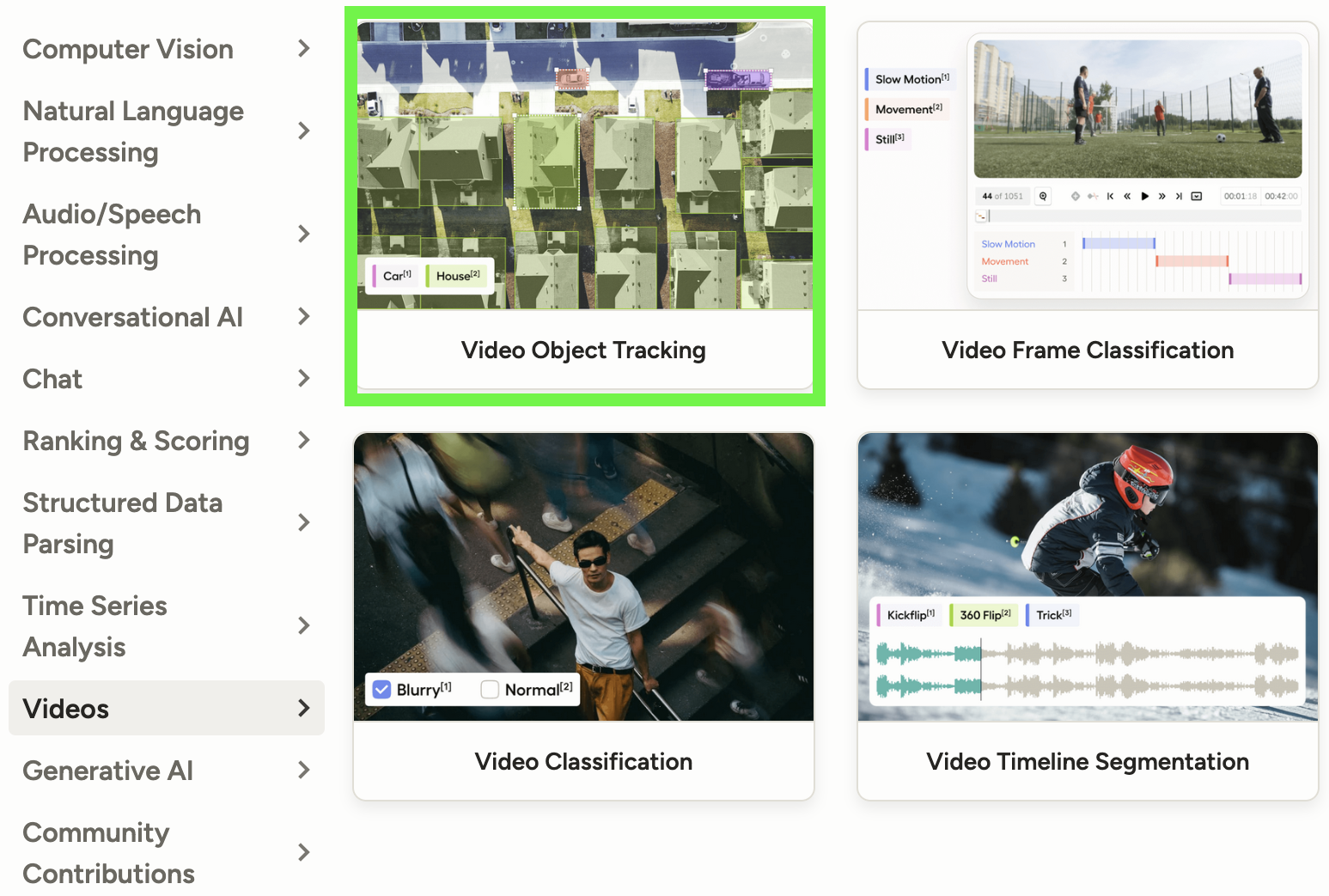
The labelling interface was adapted from a pre-existing template. Label Studio offers different templates depending on the project requirements. For the model being developed, the video object detection template was selected as most appropriate. Whilst the primary objective is to identify push-off movements, these movements are gradual rather than instantaneous, requiring annotation across multiple frames to capture the complete motion. Similarly can be said for ground contact and landing.
6. Next Steps
The subsequent article details the methodology for drawing bounding boxes on selected frames and the annotation guidelines followed to ensure a high quality dataset.
Topics
- Video Objects Detection & Tracking
- Video Annotation
Tech Stack
- Label Studio
- Amazon S3